Platform Operator Guide
A complete reference for teams running OMNYTH Payment Hub day-to-day — from creating your first payment to managing reconciliation, compliance, and treasury operations. All 19 platform modules are covered.
1. Getting Started
Roles and Permissions
Every user in OMNYTH is assigned one or more roles that control which modules and actions they can access:
| Role | What they can do |
|---|---|
MAKER | Create and submit payments, view own transactions |
CHECKER | Approve or reject payments in pending approval state |
APPROVER | All CHECKER capabilities plus higher-value thresholds |
OPS_USER | Operations Console: search, replay, resubmit, view timelines |
CONFIG_MANAGER | Manage flows, routing rules, service registry, limits, fees |
SECURITY_ADMIN | Manage security policies, view crypto audit logs, key registry |
ADMIN | Full access to all modules |
Navigation
The left sidebar organizes all modules into functional groups: Payments, Configuration, Operations, Compliance, Messaging, Treasury, Security, Monitoring, and Developer Portal. Modules you do not have access to are hidden based on your assigned role.
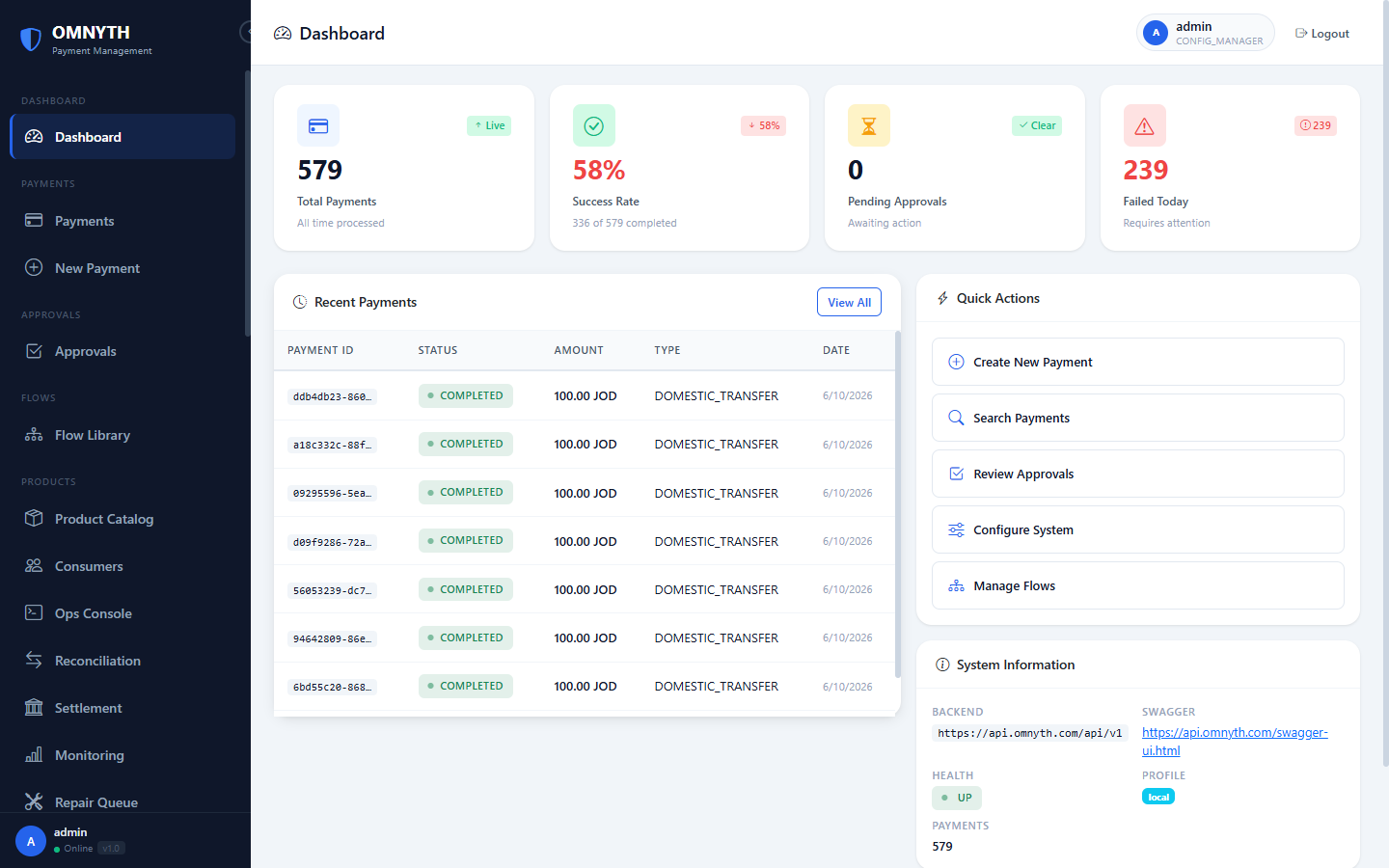
Dashboard — real-time payment metrics, recent transactions, and quick actions
2. Payment Processing
Creating a Payment
Navigate to Payments → New Payment. Fill in the payment details: payment type, source country, currency, amount, debtor, and creditor information. Click Create. The payment is saved in RECEIVED state.
Submitting for Processing
On the payment detail page, click Submit. The Flow Engine selects the correct flow based on your payment type and country, then begins executing steps. The payment moves to PROCESSING.
Payment States
| State | Meaning |
|---|---|
RECEIVED | Created but not yet submitted to the flow engine |
PROCESSING | Flow is actively executing steps |
PENDING_APPROVAL | Paused at an approval gate — requires human action |
APPROVED | Approval granted, flow resuming |
REJECTED | Approval denied, flow stopped |
COMPLETED | All steps completed successfully |
FAILED | A step failed and no recovery was possible |
CANCELLED | Cancelled before completion |
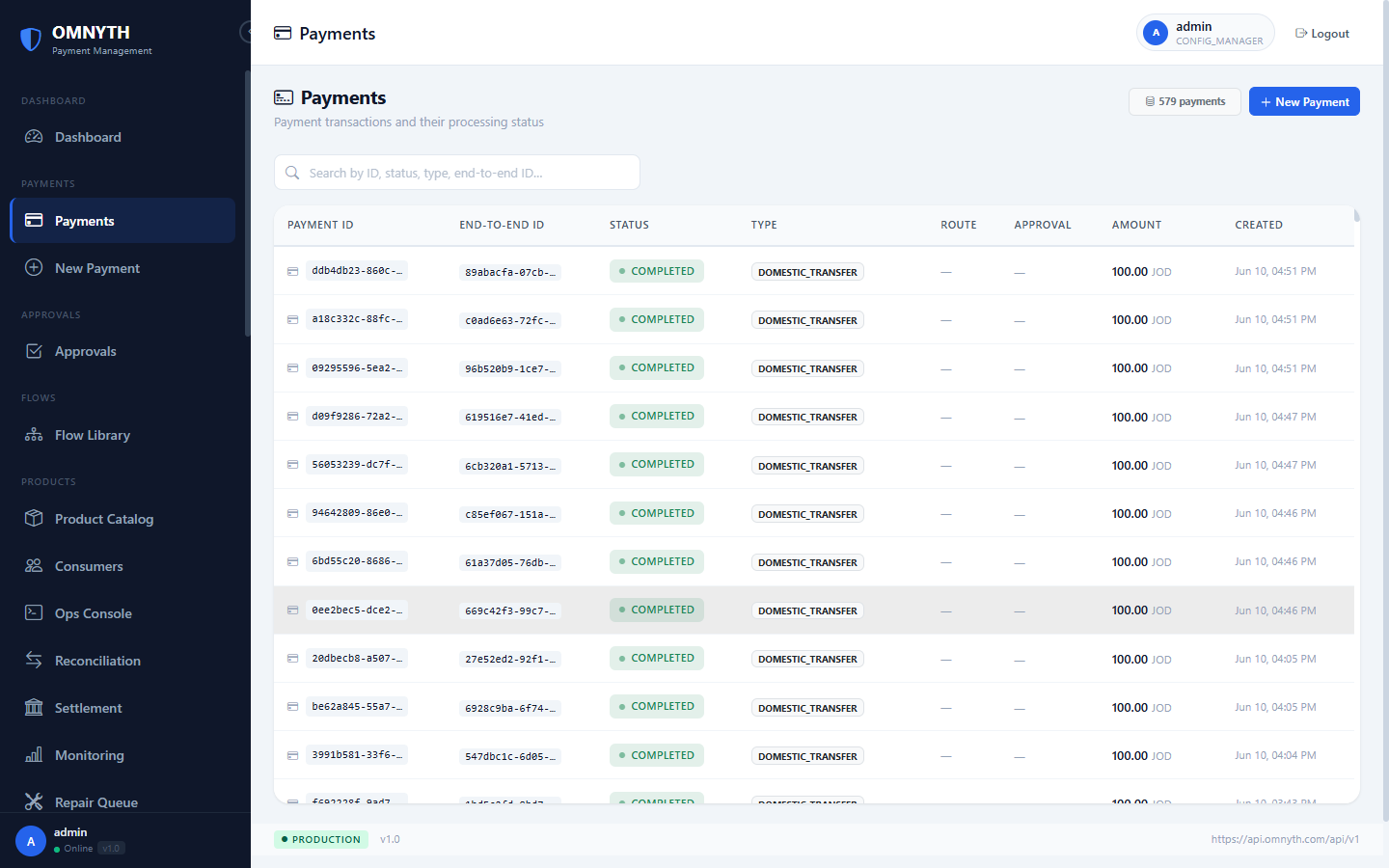
Payments list — filter by status, type, or date range; click any row for the full timeline
3. Approvals
When a flow contains an Approval Workflow step and a payment meets the threshold conditions, it pauses and enters PENDING_APPROVAL. CHECKER and APPROVER roles see these in the Approvals dashboard.
To process an approval: open the pending payment, review the details, then clickApprove or Reject. Approved payments resume flow execution immediately. Rejected payments move to REJECTED state and stop.
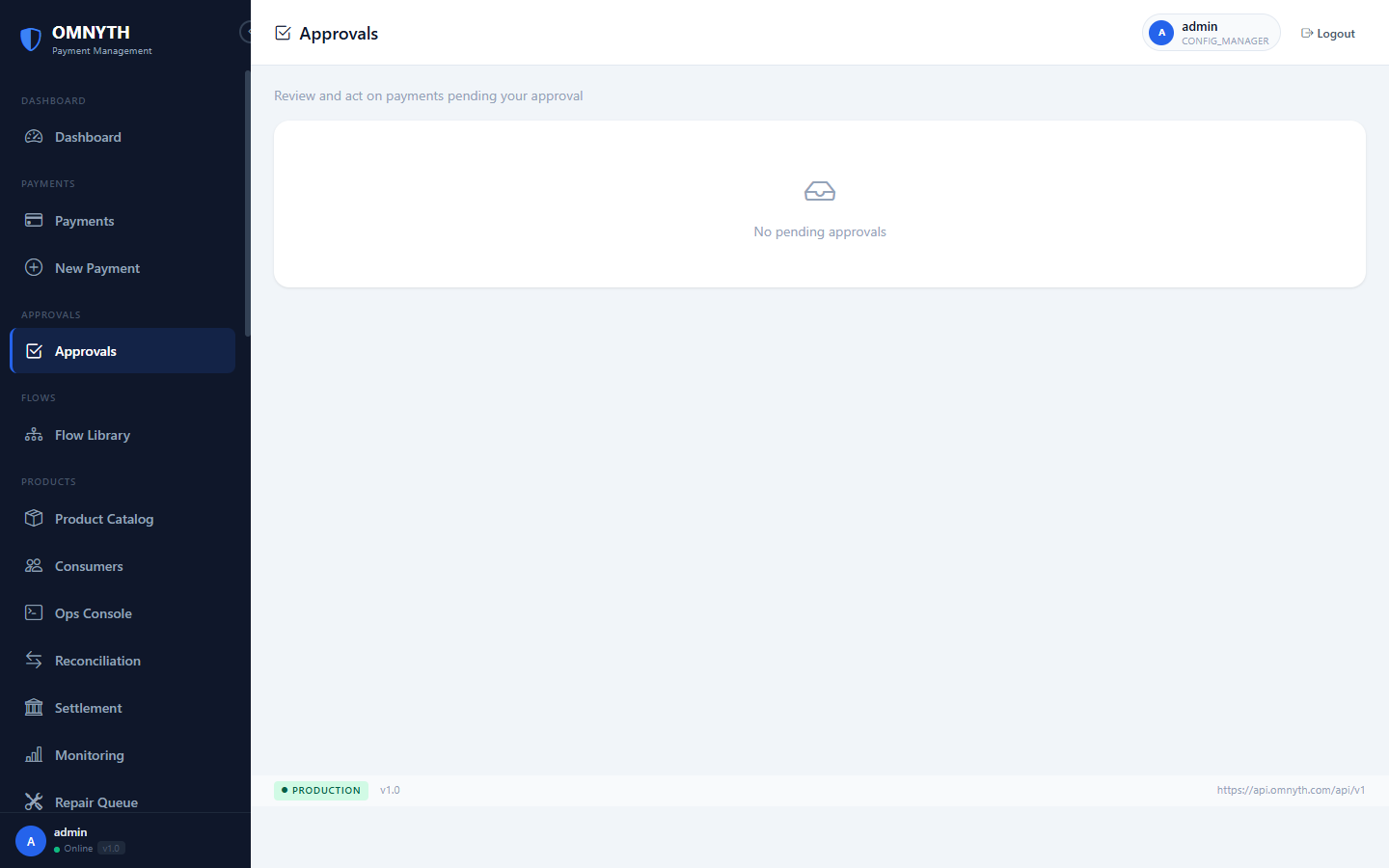
Approvals — pending payments awaiting CHECKER or APPROVER action
4. Flow Management
Flows define the step-by-step orchestration plan for each payment type. Navigate to Configuration → Flow Library.
Creating a Flow
Click New Flow. Set the flow name, payment type, source country, and channel.
Open the Flow Designer. Drag step types from the palette onto the canvas: VALIDATION, SCREENING, FRAUD_CHECK, LIMIT_CHECK, FEE_CALCULATION, ROUTING_DECISION, GATEWAY_SUBMISSION, APPROVAL_WORKFLOW, NOTIFICATION, LIQUIDITY_CHECK, ISO20022_GENERATE, ISO20022_PARSE.
Connect steps with edges labeled success and failure. Each edge points to the next step by its order index.
Configure each step: set the step name, provider (for SERVICE_CALL steps), and any step-specific parameters.
Save as Draft, then click Publish to make the flow active. Published flows are immediately available for new payments.
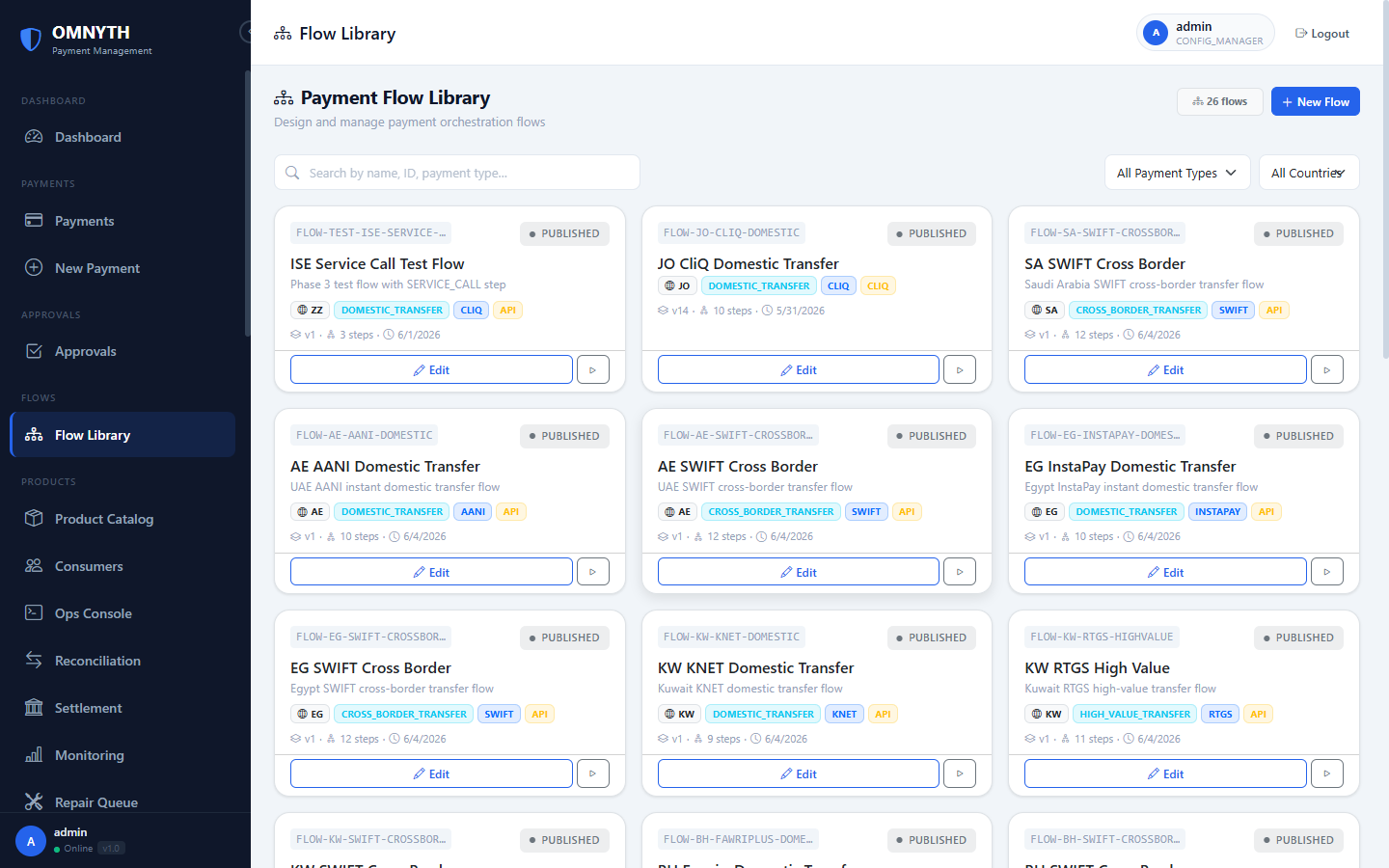
Flow Library — browse, version, and publish flow definitions per payment type and country
5. Service Registry
The Service Registry holds reusable technical integrations used by SERVICE_CALLflow steps. Navigate to Configuration → Service Registry.
Each service entry defines: the service code, endpoint URL, HTTP method, timeout, retry policy, and optional security policy. Services can be tagged with schemas and security configurations without modifying the flow that uses them.
6. Routing & Rules
Navigate to Configuration → Routing Profiles to define rule sets that determine which provider handles a payment. Rules evaluate payment fields (amount, currency, country, customer type) in priority order — the first matching rule wins.
Fee Profiles, Limit Profiles, and Validation Profiles follow the same pattern: create a named profile with a set of rules, then reference the profile name in a flow step configuration.
7. Operations Console
Navigate to Ops Console. This is the primary tool for investigating payment issues — reserved for the OPS_USER and ADMIN roles.
Searching Payments
Use the search bar to filter by payment ID, reference, status, payment type, or date range. Results are sorted newest-first. Click any row to open the full detail view.
Flow Trace
On the payment detail, the Flow Trace tab shows every step that executed, its duration, input/output hash, and result. Use this to pinpoint exactly which step failed and why.
Replay and Resubmit
For failed payments, the Replay action re-executes the failed step using the same input. Resubmit creates a fresh flow execution from the beginning. Both actions are logged in the ops action log with the operator's identity.

Operations Console — search payments, inspect flow traces, and trigger replay or resubmit
8. Reconciliation
Navigate to Reconciliation. The reconciliation engine matches completed OMNYTH payment records against external bank or provider records.
Running a Reconciliation Session
Click New Session. Choose the date range and reconciliation rule set.
The engine runs automatically, comparing records and assigning a match status to each item.
Review items by match status: MATCHED (confirmed), UNMATCHED (no counterpart found), PARTIAL (amounts differ), or DISPUTED (manual review required).
For UNMATCHED or DISPUTED items, click Resolve and choose the resolution action: force-match, write-off, or escalate.
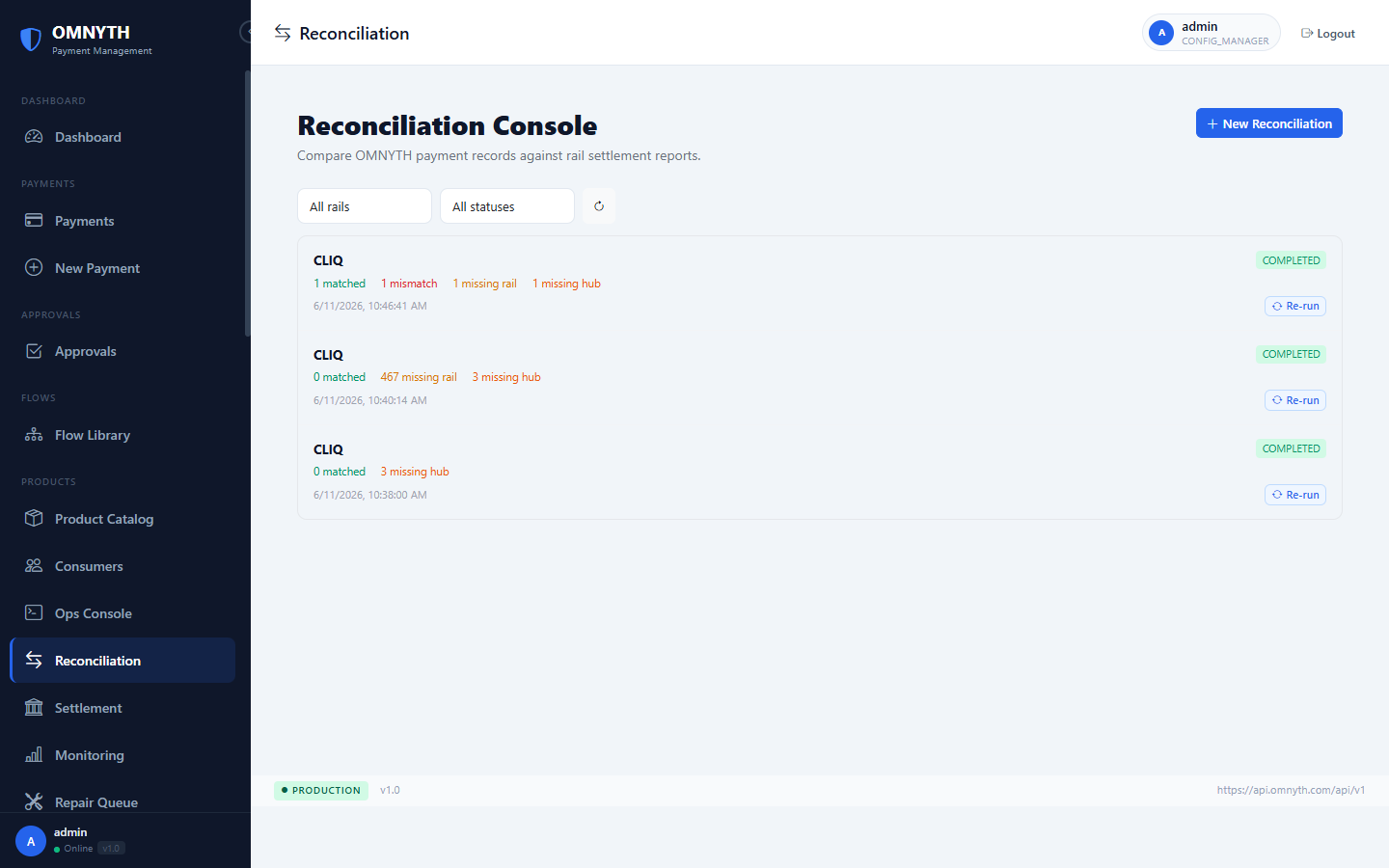
Reconciliation Console — match internal payments against external bank records
9. Settlement
Navigate to Settlement. Settlement batches group reconciled payments for net position calculation and final settlement.
Click Create Batch. Select the date range, currency, and settlement method.
Review the batch items and net position. The system calculates the total debit, credit, and net amount.
Click Submit to move from PENDING → SUBMITTED. After external confirmation, mark as SETTLED.
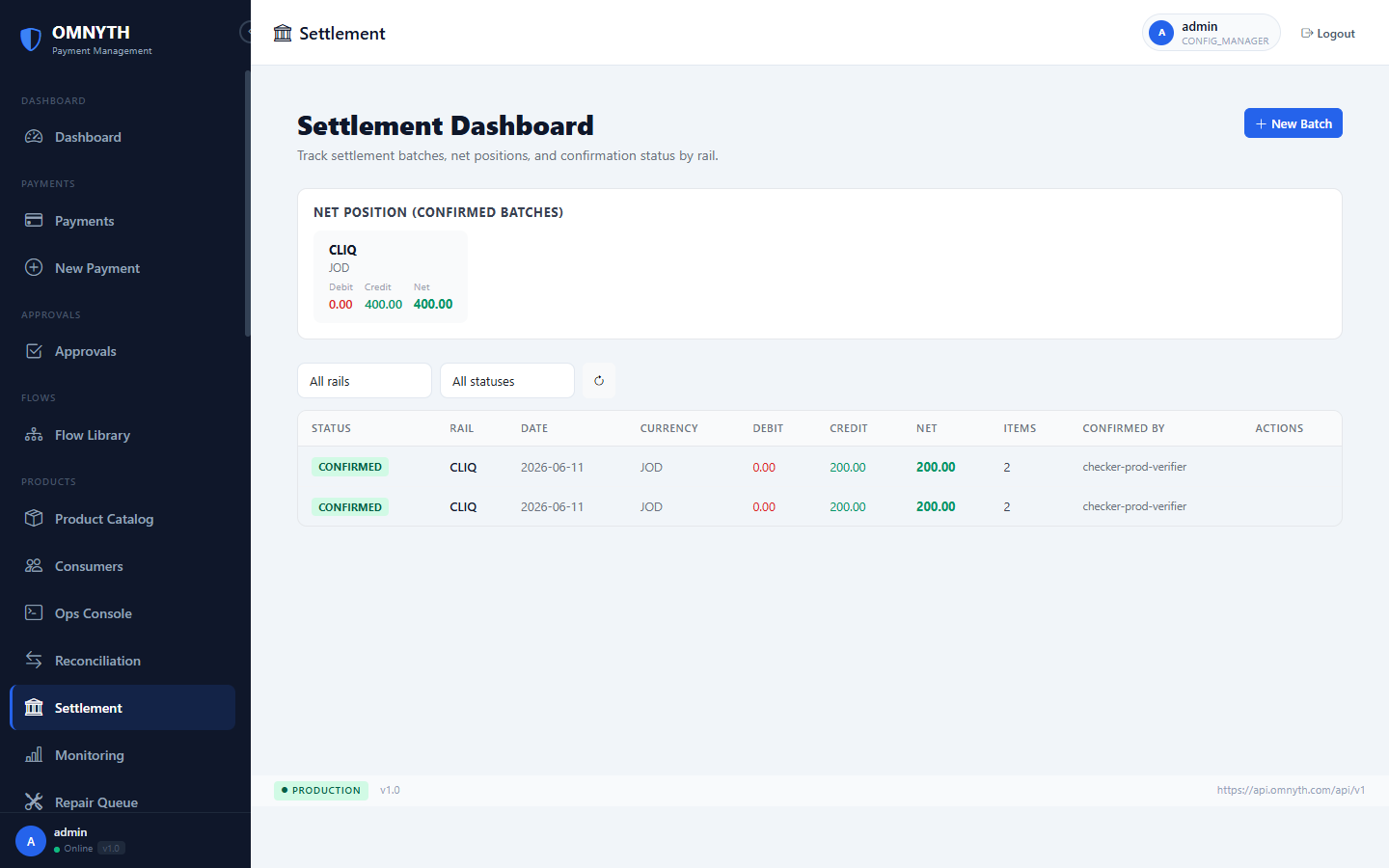
Settlement Dashboard — batch net positions, submission status, and settlement confirmation
10. Monitoring & Alerting
Navigate to Monitoring. The dashboard shows real-time platform health: payment throughput, success/failure rates, p50/p95/p99 step latency, and circuit breaker states by provider.
SLA Management
Navigate to Monitoring → SLA Config to define SLA thresholds per payment type. When a payment breaches its SLA target, an alert is raised automatically.
Alert Types
- SLA_BREACH — payment exceeded its configured processing time target
- HIGH_FAILURE_RATE — failure rate exceeded threshold for a payment type
- PROVIDER_CIRCUIT_OPEN — circuit breaker tripped for a provider
- HIGH_LATENCY — p95 latency exceeded warning threshold
- QUEUE_DEPTH — pending approval queue exceeded configured limit
- PAYMENT_STUCK — payment has been in PROCESSING state too long
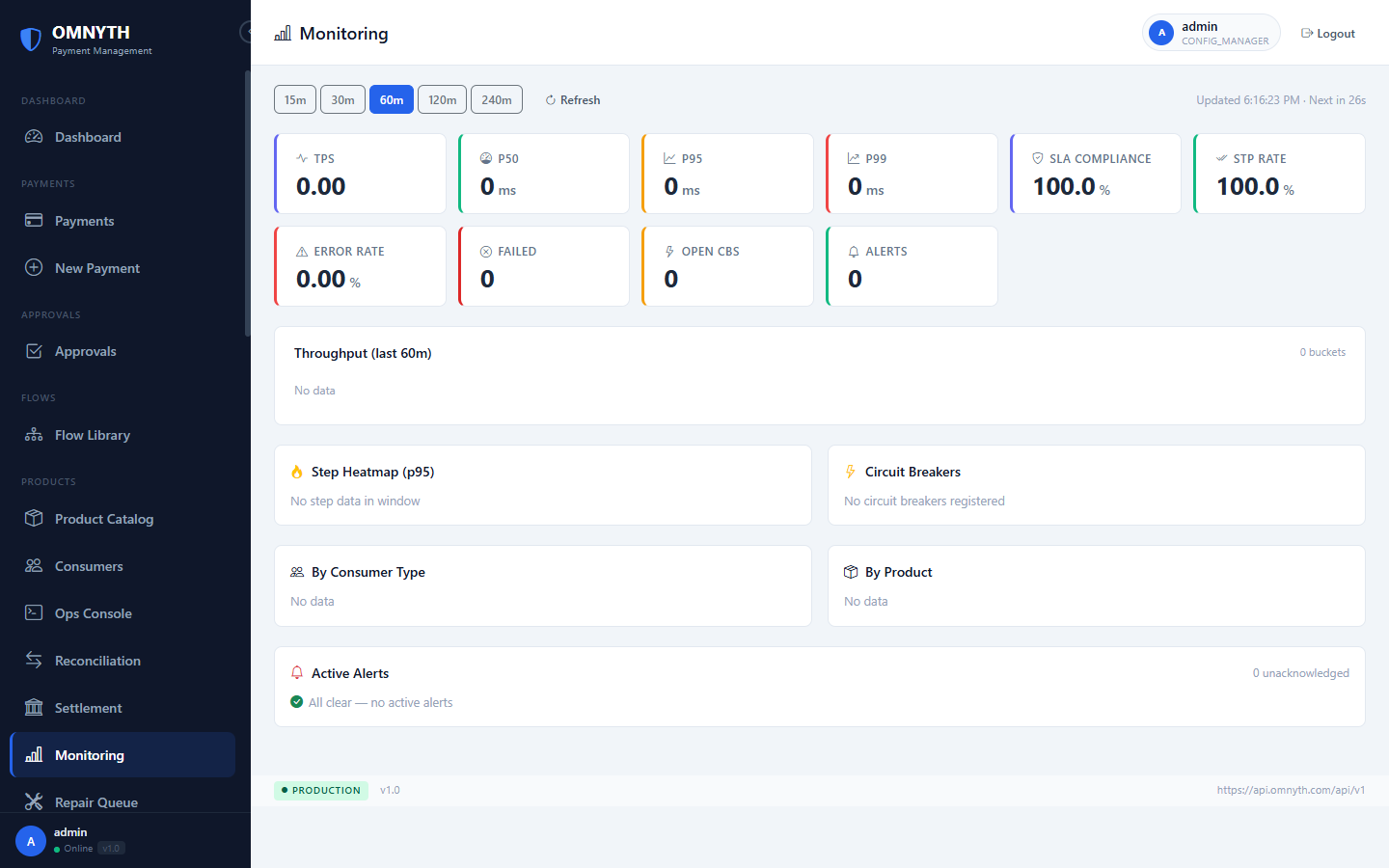
Monitoring Dashboard — live throughput, success rates, latency percentiles, and active alerts
11. Auto Repair Engine
Navigate to Operations → Repair Queue. The Auto Repair Engine detects failure patterns and creates repair cases automatically — no manual intervention required for routine failures.
Repair Cases
Each repair case shows: the payment ID, failure pattern detected, the playbook assigned, retry count, and current state (OPEN, IN_PROGRESS,RESOLVED, ESCALATED).
Repair Playbooks
Navigate to Operations → Repair Playbooks to view and configure the automated repair strategies. Each playbook defines: which failure pattern it handles, the repair action (RETRY, REROUTE, ESCALATE), maximum retry attempts, and back-off delay configuration.
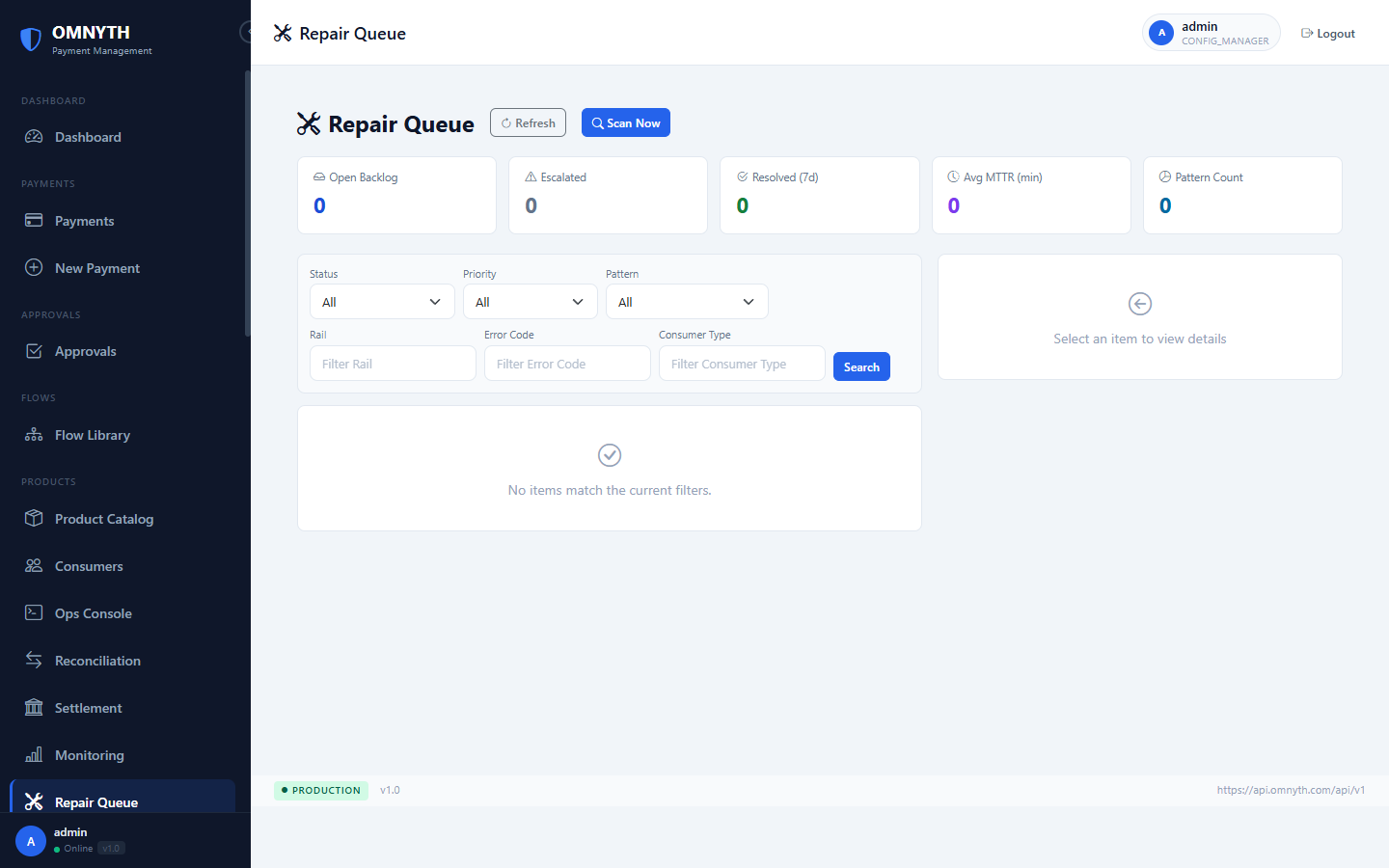
Repair Queue — auto-detected failure patterns with playbook assignments and retry status
12. ISO 20022 Messaging
Navigate to Messaging Console. This module handles the generation and parsing of ISO 20022 financial messages for provider communication.
- Message Schemas — define field mappings for pain.001 (credit transfer), pain.002 (payment status), pain.008 (direct debit), camt.052 (account report), camt.053 (statement), camt.054 (debit/credit advice)
- Message Profiles — named configurations that combine a schema with encoding options (XML, JSON)
- Transformation Rules — field-level expression mappings between OMNYTH data model and ISO 20022 field paths
- Type Activation — enable or disable specific message types per payment rail
- Test Messages — generate and preview sample messages using configured profiles
To add ISO 20022 messaging to a flow, add a step of type ISO20022_GENERATEor ISO20022_PARSE and reference the message profile code in the step configuration.
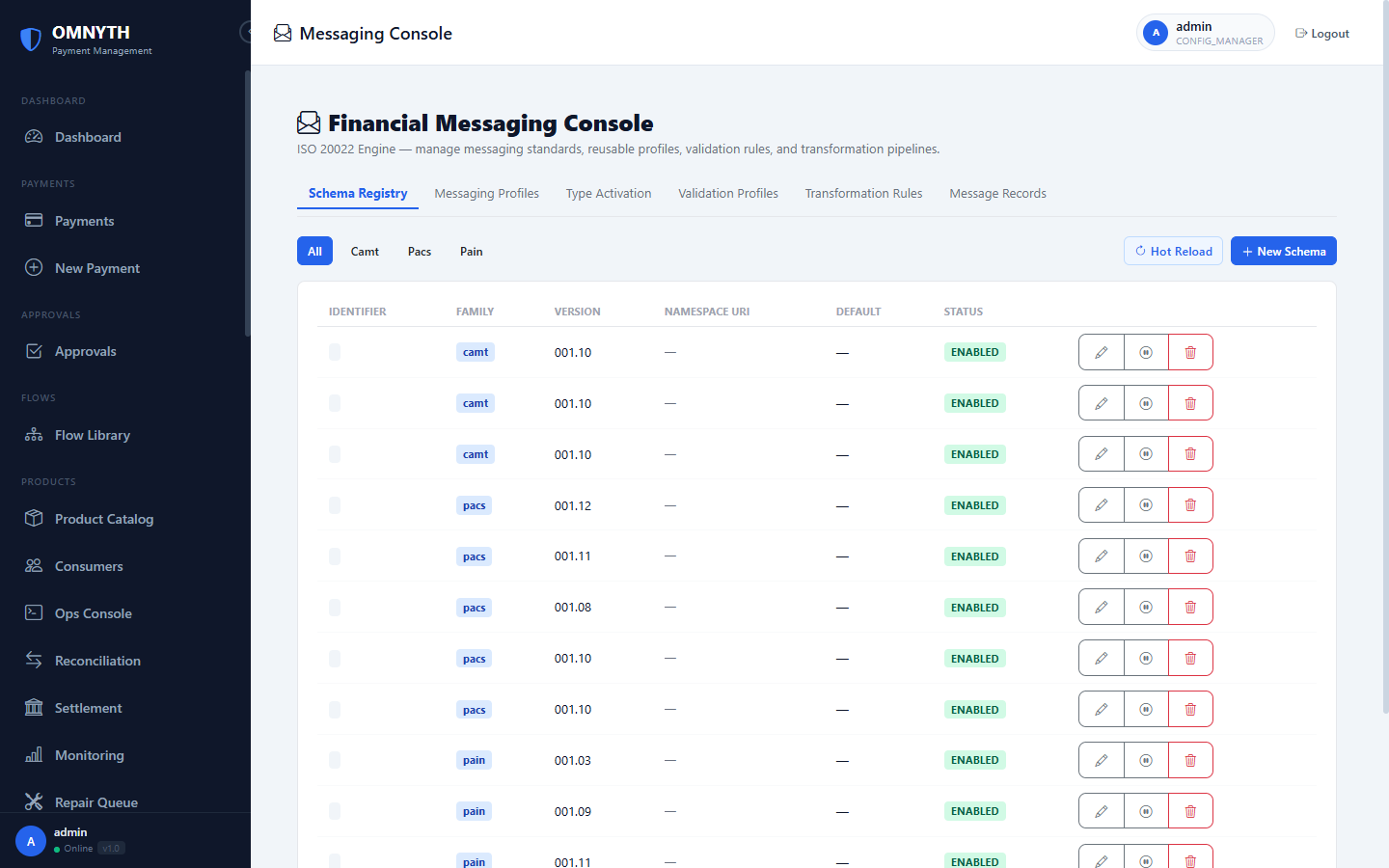
Messaging Console — schema registry, transformation rules, profiles, and test message generation
13. Treasury & Liquidity
Navigate to Treasury → Nostro Accounts. The Treasury module tracks nostro account positions used to fund cross-border and inter-bank payments.
Nostro Account Management
Each nostro account entry records: the bank, IBAN, currency, payment rail association, current balance, and intraday position. Positions update automatically when payments complete or when CAMT bank statements are ingested.
Liquidity Check in Flows
Add a LIQUIDITY_CHECK step to any flow to verify that sufficient nostro balance exists before submitting the payment to a provider. If balance is insufficient, the step fails and the flow routes to the configured failure path.
Intraday Liquidity
The Intraday view shows per-rail liquidity utilization across the business day — helping treasury teams identify positions requiring same-day funding.

Treasury — nostro account positions, intraday liquidity utilization, and funding instructions
14. CAMT Statement Ingest
Navigate to Treasury → CAMT Ingest. This module automatically parses ISO 20022 bank statements (camt.053 and camt.054) received from correspondent banks.
Click Upload Statement. Select the XML file from your bank (camt.053 or camt.054 format).
The parser extracts all transactions and matches the statement IBAN to the configured nostro account.
Nostro positions are updated automatically based on the parsed closing balance.
A reconciliation session is seeded automatically from the statement transactions — matched against OMNYTH payment records for the same period.
Parsed statements appear in the statement list with: statement ID, bank BIC, account IBAN, statement date, currency, opening/closing balance, and transaction count.

CAMT Ingest — upload ISO 20022 bank statements; automatic position update and recon seeding
15. Compliance Console
Navigate to Compliance. This module provides lifecycle management for fraud cases and sanctions hits detected during payment processing.
Fraud Cases
When the fraud scoring step detects a high-risk transaction, a fraud case is created automatically. Each case shows: the payment, fraud score, risk indicators, and current case state. Case states: OPEN → UNDER_REVIEW → CONFIRMEDor DISMISSED.
Compliance analysts review the case details and either confirm (block the payment) or dismiss (allow it to proceed). All decisions are logged with the analyst's identity.
Sanctions Hits
Sanctions hits are created when the screening step matches a payment party against a watchlist. Each hit records: the matched name, watchlist source, match score, and screening provider. Hits require manual review and disposition before the payment can proceed.
Case Summary Dashboard
The Summary tab shows open case counts by type, average resolution time, and detection rate — giving compliance managers an operational view of screening activity.
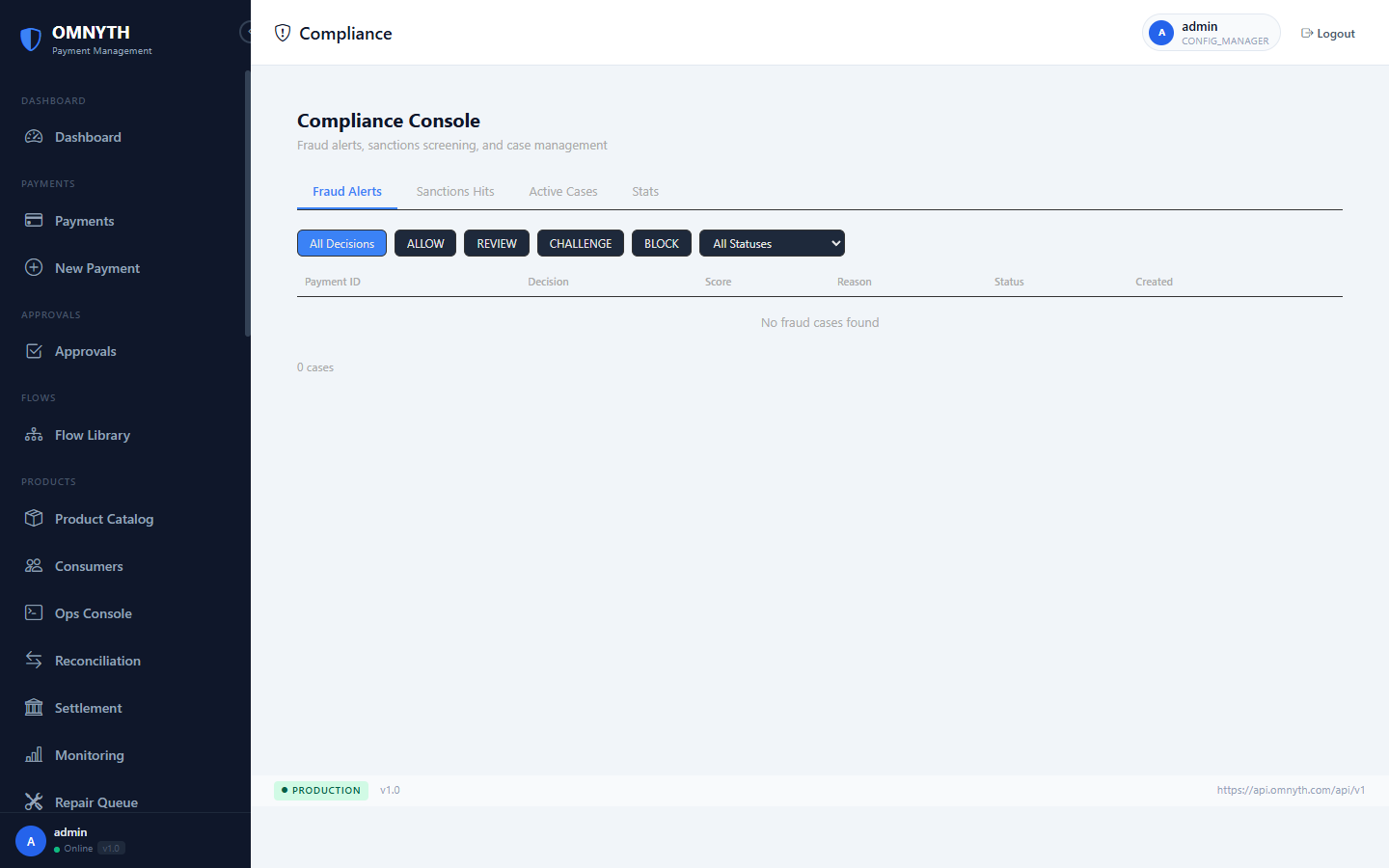
Compliance Console — fraud case lifecycle management and sanctions hit review
16. Security Framework
Navigate to Security → Security Policies. Security policies define which cryptographic operations apply to a specific service integration.
Creating a Security Policy
Click New Policy. Select the target service and operation code.
Choose the crypto algorithm: AES-GCM, AES-CBC, JWE (RSA-OAEP), JWS (RS256), or HMAC-SHA256.
Set the key alias — must match an alias in the configured keystore. Never enter raw key material.
Start in DRY_RUN mode to verify configuration without affecting live payments.
Once validated, promote to ACTIVE. All subsequent calls to that service will have the policy applied.
Crypto Audit Log
Navigate to Security → Crypto Audit Log for a full immutable record of every cryptographic operation: timestamp, service, algorithm, key alias, input hash (SHA-256 — no plaintext stored), and result.
Key Registry
Navigate to Security → Key Registry to view all key aliases available in the configured keystore. Shows alias, algorithm, validity dates, and whether the key is currently referenced by an active policy.
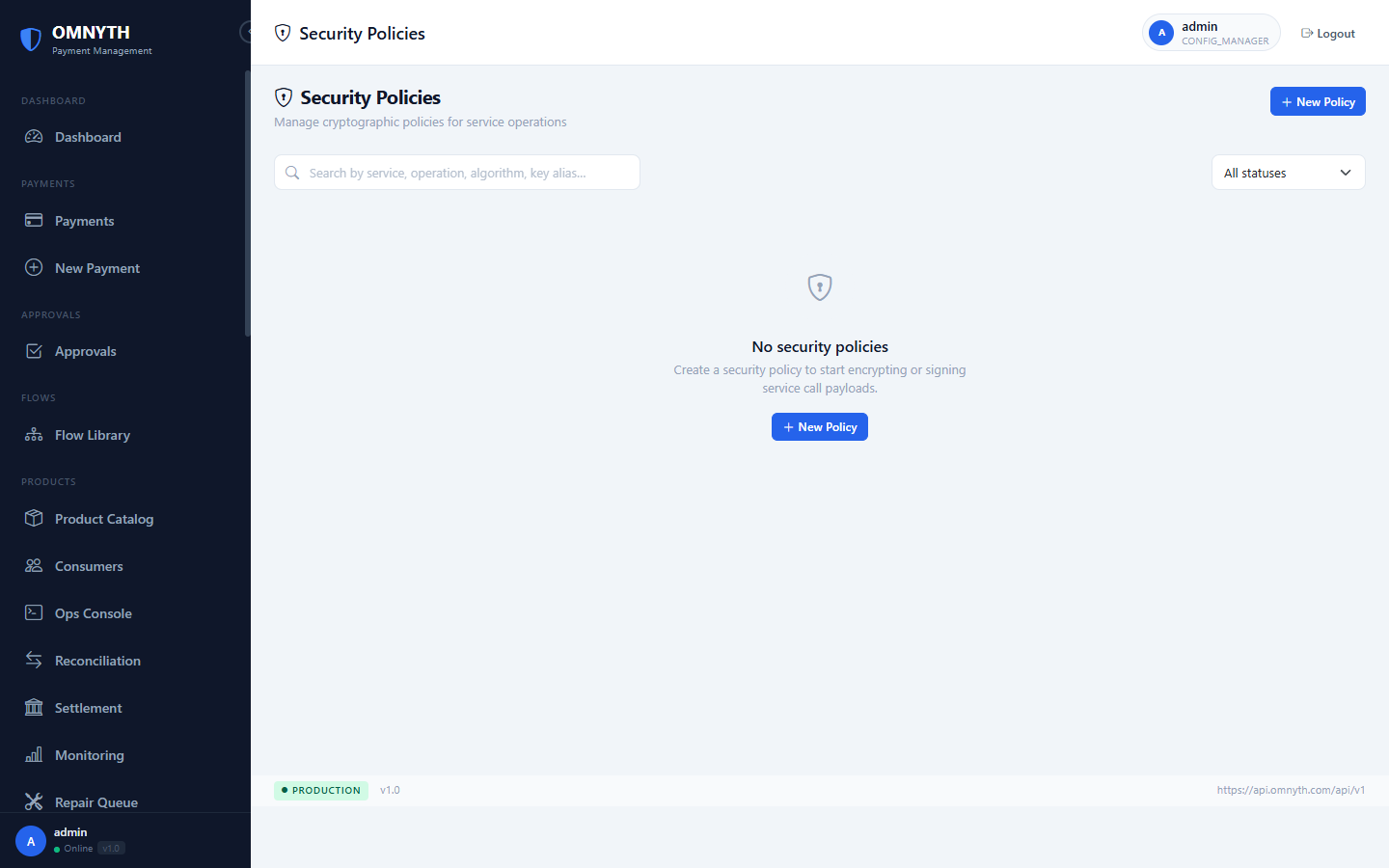
Security Policies — configure field-level encryption, signing, and HMAC per service integration
17. Developer Portal
Navigate to Consumers to manage external API consumers. Each consumer represents an application or team integrating with OMNYTH.
The self-service Developer Portal is available at omnyth.com/portal — consumers can register, subscribe to products, generate API keys, configure webhooks, and view their usage analytics without admin involvement.
Consumer Rate Limits
Each consumer type has configurable rate limits: requests per minute, daily transaction count, and maximum single-payment amount. Limits are enforced in real-time and tracked per consumer in the analytics dashboard.
18. Configuration Modules
The following configuration modules support all operational workflows above:
- Payment Types — define business payment categories (DOMESTIC_TRANSFER, CROSS_BORDER, SALARY_BATCH, etc.)
- Rails Registry — manage payment settlement networks and their country/provider associations
- Country Config — per-country currency, limit, and compliance configuration
- Currency Registry — supported currencies and ISO 4217 codes
- Message Profiles — ISO 20022 message format configurations
- Workflow Profiles — approval threshold and escalation configuration
- Fee Profiles — fee calculation rule sets by payment type and amount bracket
- Limit Profiles — per-customer, per-type daily/monthly transaction limits
19. Audit Trail
Every significant action in OMNYTH is recorded in an immutable audit trail stored in MongoDB. Records include: user identity, action type, entity affected, timestamp, IP address, and a before/after snapshot for configuration changes.
The audit trail is accessible to ADMIN role users via the platform API and is designed to satisfy regulatory requirements for financial system audit logs. Records are never deleted or modified — only appended.